Google Looker Studio One-Page Report for Google Analytics 4

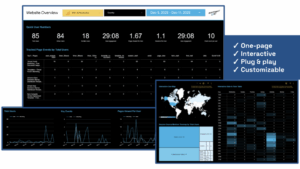 Page 1
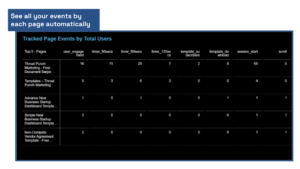 Page 2
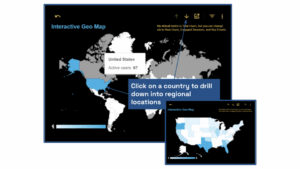 Page 3
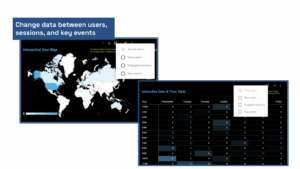 Page 4
 Page 5
What This Template Does
This Google Looker Studio report for Google Analytics 4 provides a complete snapshot of your website performance, giving marketers and business owners clear, data-driven visibility into user behavior, engagement, and events across the entire site.
Covering key metrics like total users, active users, engaged sessions, key events, pages viewed, and user engagement time, this report helps you quickly understand how your website is performing and where users are interacting.
The report includes:
- Website Performance Snapshot – View core GA4 metrics at a glance for the selected time period.
- Page-Level Event Performance – See how each tracked event performs by individual page.
- Interactive Geo Map – Drill down from country to region to city to understand where users are coming from.
- Interactive Date & Time Heat Map – Analyze user activity by hour of day and day of week, with metrics switchable between Total Users, Active Users, Engaged Sessions, and Key Events.
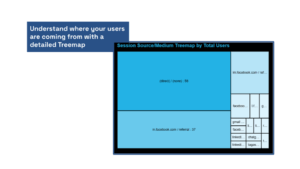
- Traffic Source Treemap – Understand exactly where traffic originates by source and medium.
- Trend Visualizations – Track how users, key events, and pages viewed change over time.
Built directly on Google Analytics 4 data and designed for Google Looker Studio, this report helps you quickly assess website health, spot usage patterns, and gain critical insights—without clicking through multiple GA4 reports.
How to Update
How to Copy and Connect Your Data in the Google Analytics 4 One Page Website Overview
This guide provides step-by-step instructions for creating your own version of the Google Analytics 4 One Page Website Overview in Google Looker Studio. You’ll make a copy of the template, connect it to your GA4 property, and verify that all charts populate correctly.
Important: This template is built for GA4 properties only. Universal Analytics (UA) is not supported.
Step 1: Make a Copy of the Report
- Open the shared Google Looker Studio report link.
- Click the “⋮” (three-dot menu) in the top-right corner.
- Select “Make a copy”.
- The Copy this report dialog will appear.
Step 2: Connect Your Google Analytics 4 Property
- In the copy dialog, locate the section labeled New Data Source.
- Click “Select Data Source”.
- Choose Google Analytics.
- Select your GA4 account, then choose the correct GA4 property.
- Click Add and then Copy Report.
Step 3: Verify Date Range and Filters
- At the top of the report, locate the Date Range Control.
- Adjust the date range to match your reporting needs (e.g., Last 30 Days, Last 90 Days).
- Confirm that the date range applies to all pages in the report.
Step 4: Validate Key Metrics Are Populating
- Confirm the following high-level metrics display data:
- Total Users
- Sessions per User
- Pages Viewed per User
- User Engagement Time
- Active Users
- If a metric shows “No data”, click the chart and confirm the metric exists in your GA4 property.
Step 5: Review Event Tracking Tables
- Locate the Tracked Page Events table.
- Confirm events such as:
- page_view
- scroll
- session_start
- form_start
- form_submit
- click
- If custom events (e.g., template_download, template_subscribers) do not appear, ensure they are configured and firing in GA4.
Step 6: Verify Traffic Source & Geo Visualizations
- Check the Session Source / Medium Treemap to confirm traffic sources populate (Direct, Facebook, LinkedIn, etc.).
- Review the Interactive Geo Map to ensure user locations are displaying correctly.
Step 7: Confirm Page Performance Sections
- Review the Top