Customer Relationship Management – CRM – Spreadsheet
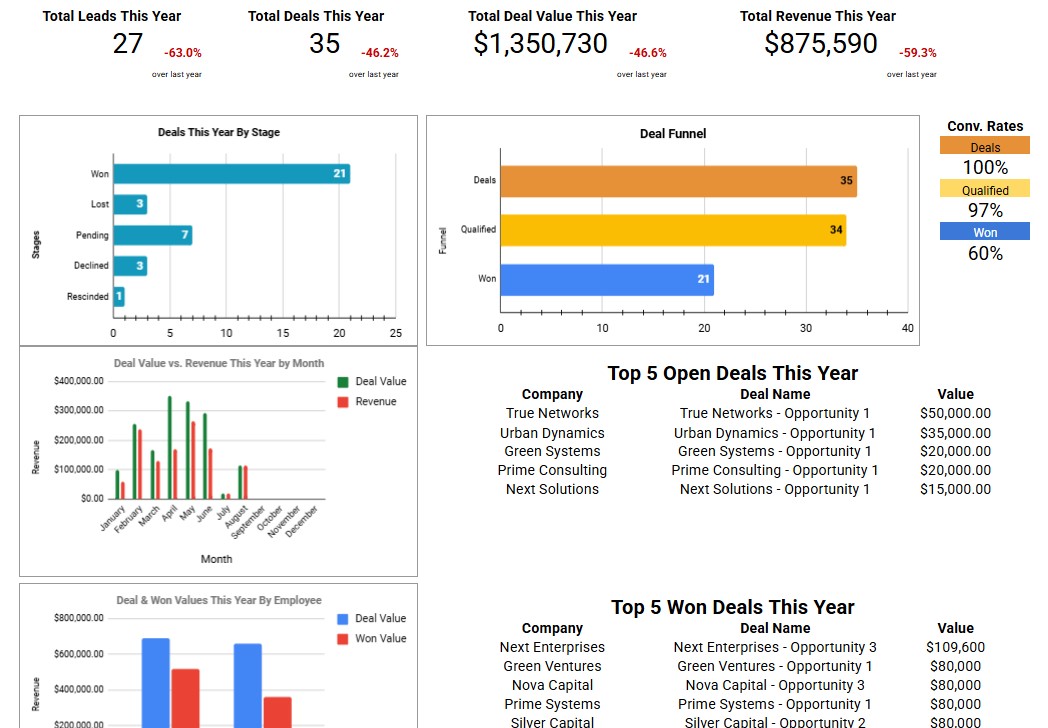
 Page 1
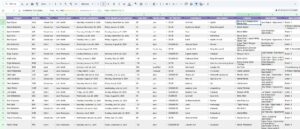 Page 2
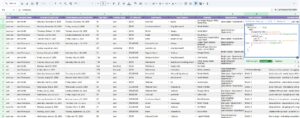 Page 3
 Page 4
 Page 5
What This Template Does
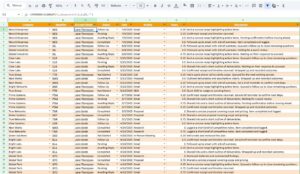
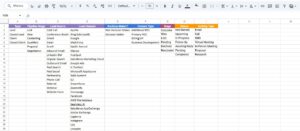
This Customer Relationship Management (CRM) template gives business owners, freelancers, and agencies a clear, organized way to manage every stage of the customer journey. Built to be easy to use while still providing powerful structure, the CRM lets you track contacts, deal status, communication notes, revenue, next steps, and task follow-ups without needing expensive software.
This template is ideal for early-stage businesses that need visibility into their pipeline, client relationships, and sales activity. You can log new leads, monitor deal progress, record important details like budgets and timelines, and maintain a historical record of conversations—all in one place. The dashboard layout helps you quickly see where every opportunity stands so nothing slips through the cracks.
Whether you’re tracking outbound outreach, inbound leads, or ongoing client projects, this CRM gives you a functional, flexible foundation for staying organized, improving follow-up, and closing more business.
How to Update
How to Clear Data in the CRM Template (Accounts, Contacts, Opportunities, Activities, Employees)
This guide explains how to safely delete placeholder data from each tab in your CRM spreadsheet while keeping formulas, dropdowns, and structure intact. The goal is to reset the CRM for your own business use without breaking any automated references.
Step 1: Open the Template
- Open Customer Relationship Management (CRM).xlsx in Excel or upload it to Google Sheets.
- Ensure you can see the main tabs: Accounts, Contacts, Opportunities, Activities, and Employees.
Step 2: Start with the “Accounts” Tab
- Click on the Accounts tab at the bottom.
- Select the data rows only — do not highlight the column headers (Row 1).
- Example: Click and drag to select all populated rows beneath the headers.
- Right-click and choose Delete Rows or press Ctrl + - (Windows) or Cmd + - (Mac).
- Leave formulas, dropdowns, and header labels intact.
Step 3: Clear Data in “Contacts” Tab
- Click the Contacts tab.
- Select all data rows beneath the headers (for example, starting from Row 2 downward).
- Right-click and select Clear Contents — not Delete — to preserve data validation and dropdowns.
- Alternatively, use Edit → Clear → Contents from the menu bar.
Step 4: Clear Data in “Opportunities” Tab
- Click the Opportunities tab.
- Select all data rows containing sample information.
- Right-click → Clear Contents.
- Do not delete entire columns; these often include formulas that link to Accounts or Contacts.
Step 5: Clear Data in “Activities” Tab
- Click the Activities tab.
- Select all populated rows under the header.
- Choose Clear Contents to remove sample data while preserving linked dropdowns (like Account Name or Contact).
Step 6: Clear Data in “Employees” Tab
- Click the Employees tab.
- Select the data rows below the header.
- Choose Clear Contents or Delete Rows if you want to remove all placeholders.
Step 7: Save Your Clean Template
- Once all sample data has been cleared, save a new copy of your CRM file:
- In Excel: File → Save As → “My Business CRM.xlsx”
- In Google Sheets: File → Make a Copy → Rename it for your company.
Important Notes
- Do not delete Row 1 — this contains column headers and may be referenced in formulas or data validation lists.
- Do not delete entire columns unless you are certain they are not used elsewhere in the workbook.
- Formulas and dropdowns (like Account Name, Contact Owner, or Status) will remain functional after clearing data.
- If you accidentally delete formulas, you can re-download the original template and copy the affected column back in.
Quick Reference
Tabs to Clean
- Accounts → Delete or clear all sample rows below headers.
- Contacts → Clear contents, keep dropdowns.
- Opportunities → Clear contents, preserve formulas.
- Activities → Clear sample entries.
- Employees → Delete sample records, keep column headers.