Advance New Business Startup Dashboard

 Page 1
 Page 2
What This Template Does
This Advanced Business Startup Dashboard builds on the simple version by offering a more detailed ledger and tax integration. It allows you to:
- Store essential business info – company details, EIN, registration, and contact information.
- Track systems and logins – centralize accounts and credentials for easy team access.
- Monitor owner investments – record purchases, renewal cycles, and contributions by partner.
- Manage expenses with detail – the Ledger tracks vendors, billing terms, categories, and monthly allocations with totals.
- Feed into tax submission – a dedicated Tax Submission sheet rolls up expenses into IRS-aligned categories (e.g., legal, meals, income, partner funding) to simplify reporting and reduce errors.
This template not only keeps your new business organized but also ensures your financial records are structured in a way that supports accurate and efficient tax preparation. It’s ideal for startups, partnerships, and small businesses that want clarity from day one.
How to Update
How to Update Your Advance New Business Startup Dashboard Template
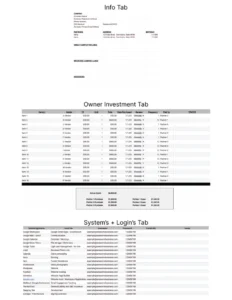
This guide provides step-by-step instructions for customizing your Advance New Business Startup Dashboard. The template includes sheets for company info, systems/logins, owner investment tracking, a detailed ledger, and tax submission. You only need to update placeholder text and values — all formulas will auto-calculate.
Step 1: Update Company Info
- Go to the "Info" sheet.
- Replace placeholders such as [Company Name], [Company Registered Address], [Phone Number], EIN: [Number], and [Company Primary Email Address] with your actual business details.
- Update the Registered [DATE] field with the company’s official registration date.
Step 2: Update Systems + Logins
- Go to the "Systems + Logins" sheet.
- Replace the sample entries (Google Workspace, Gmail, Calendar, etc.) with the actual tools and platforms your business uses.
- Update Username, Password, and Portal URL for each system.
- Use the Notes column for reminders (e.g., renewal cycle, admin owner).
- Tip: For shared copies, avoid entering real passwords — instead note where credentials are stored securely (e.g., LastPass).
Step 3: Update Owner Investment
- Go to the "Owner Investment" sheet.
- Update the Item(s) column with purchases or assets (e.g., domain, software license, equipment).
- Enter the Vendor name, Unit cost, and Total (auto-calculated if formula exists).
- Fill in Date Purchased, renewal term (Monthly/Annually), and Frequency.
- Indicate which partner paid under Paid by and track the Status (e.g., Paid, Pending).
Step 4: Update Ledger
- Go to the "Ledger - YYYY" sheet.
- Update Billing Date, Vendor, and $ (cost amount).
- Confirm Billing Terms (Annual, Monthly, One-Time, etc.).
- Fill in Cost Type (Expense/Income), Used For, and Category (e.g., Accounting, Legal, IT Services).
- Enter notes if needed.
- Update monthly amounts (January–December). The Deposits, Expenses, Distributions, and Total columns will auto-calculate.
Step 5: Update Tax Submission
- Go to the "Tax Submission - YYYY" sheet.
- Review listed categories (e.g., Accounting, Legal, Meals, Partner Funding, Income).
- Replace placeholder or sample values with your actual year-to-date totals.
- Use this sheet as a reference summary when preparing business tax filings.
Step 6: Ongoing Maintenance
- Review monthly to keep ledger and tax submission data up-to-date.
- Confirm all placeholder text has been replaced with your actual data.
- Share with business partners or accountants as needed.
Quick Reference
Key placeholders to replace
- [Company Name], [Address], [Phone], EIN: [Number], [Email], Registered [DATE]
- Systems + Logins → Update with real platforms and credentials
- Owner Investment → Replace sample vendors/items with real expenses
- Ledger - YYYY → Replace Item rows with actual vendor entries and billing terms
- Tax Submission - YYYY → Replace placeholder values with your actual totals